How to Send Bulk Email from Gmail for Free with Mail Merge
Import a CSV contact list, personalize each email, preview your messages, and send from Gmail for free. Learn the steps, sending limits, and what requires an account.
 Ray Lee· · Updated ·3 min read
You can send personalized bulk email from Gmail without copying each message by hand. Use a mail merge tool to import your contacts, fill in fields such as each person's name, and send a separate email to each recipient.
With sendbulk.email, sending and mail merge are free. You can try one campaign as a guest, then create a free account to keep sending. Your Gmail account's sending limits still apply.
How to send personalized bulk emails from Gmail
1. Prepare a contact list
Create a spreadsheet with an email column and any fields you want to use in your messages. For example:
email,first_name,company
alex@example.com,Alex,Example Studio
sam@example.com,Sam,Example Shop
Use one row per recipient. Export the sheet as CSV, or copy the rows with the header row to paste into the sender. Check that email addresses are current and that recipients expect your message.
2. Import your contacts
Open the free bulk email sender, then upload your CSV or paste the spreadsheet data into the recipient table. XLSX files are also supported.
Review the imported columns and addresses before composing. Keep the header names consistent: a column named first_name is referenced as {{first_name}} in your template.
3. Personalize the subject and message
Write one template and use the column names as mail merge fields. A subject could be:
Hi {{first_name}}, an update for {{company}}And the message could start with:
Hi {{first_name}},

Here is the update we discussed for {{company}}.
The sender fills in those fields for each row. Each person receives a separate email rather than one message addressed to a large BCC list.
4. Connect Gmail and preview
Connect the Gmail account you want to send from and approve the requested sending permission. Connecting Gmail for sending is separate from creating a sendbulk.email account.
Use Preview to check the message for individual recipients. Check names, missing values, links, and the subject before sending. If a field is blank in the spreadsheet, fix it or adjust the template before sending the campaign.
5. Send and review the result
Choose the send button after checking your list and preview. Keep the browser open while sending, and review any errors reported by the sender.
Replies arrive in your Gmail inbox. The tool adds unsubscribe links and skips addresses that have unsubscribed from that sender. Advanced campaign analytics are available on Pro.
How many bulk emails can Gmail send per day?
Google's guidance for personal Gmail accounts says sending more than 500 emails in a day can trigger a sending limit. Other emails you send from the same account count too, so 500 is not a separate allowance for this tool.
Paid Google Workspace accounts can have a limit of 2,000 messages per day. Trial accounts and some sending methods have lower limits. Google can also restrict sending because of invalid addresses or suspicious activity.
Sendbulk.email does not remove these limits. If Gmail reports a sending limit, stop and follow Google's recovery guidance rather than repeatedly retrying.
What is free, and when do I need an account?
- Sending and personalization: free, with no sending fees or contact limits imposed by sendbulk.email.
- Trying the sender: one guest campaign without creating an account.
- Sending more campaigns: create a free account after your guest campaign.
- Advanced analytics: an optional Pro feature. See current plans.
Free sending does not mean unlimited Gmail sending. Your account limits and Google's sending rules still apply.
Should I use BCC or mail merge?
BCC can work for a small group receiving the same message, and it hides the other recipients' addresses. It does not personalize each email from a spreadsheet.
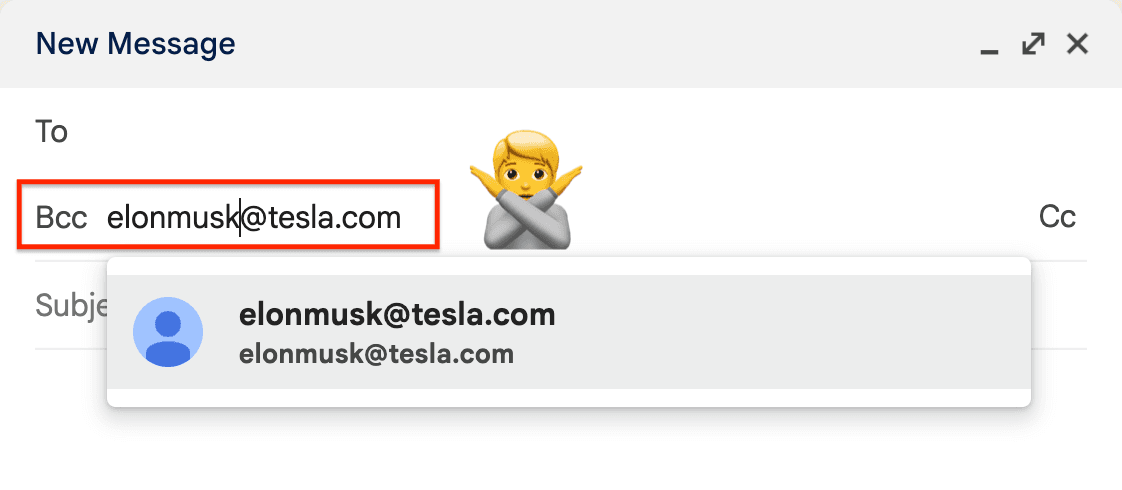
Mail merge is more useful when each recipient needs a different name, company, or other detail in the message. Neither approach guarantees inbox placement: a Gmail sender address and personalized text do not bypass spam checks.
For larger mailing lists, automated sequences, or volumes beyond your Gmail allowance, compare a dedicated email service with the requirements of your campaign.

Builder of sendbulk.email. Making email marketing simple and free.